Cornerwitch Desktop Companion Setup
Keep the corner witch readable, stable, and out of the way when you need focus.
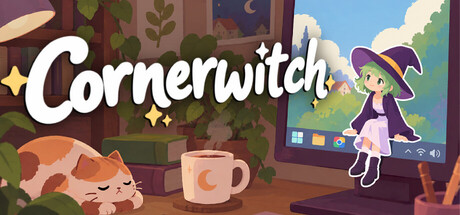
Cornerwitch鈥檚 pitch is literal: a cozy idler that sits on the corner of your screen while you click for gold, level up, unlock cosmetics, study spells, recruit cats, fight bosses, chase rare creatures, and drop into tiny idle mode to avoid distractions. This featured Tools page explains how to make that companion lifestyle work after the launch patches鈥攚ithout pretending undocumented overlays or mods exist.
Pair with System Requirements for hardware, Idle Mode for the gameplay side of AFK, and Day One Patch for the official window fixes.
Ideal companion layout
- Place the window on your least intrusive corner (usually bottom-right or bottom-left).
- Size it large enough to read spell/skill UI鈥攄ay one increased maximum game size and improved visual cues.
- If the OS keeps docking the window aggressively, use the day-one option to disable window snapping.
- On multi-monitor desks, rely on the day-one multi-monitor placement fix so the witch reopens where you left her.
- When email or code needs full attention, switch to tiny idle mode instead of closing the game鈥攑rogress fantasies continue with fewer distractions.
Day-one window toolkit (use it)
Official day-one changes that directly serve companion play:
- Option to disable window snapping
- Larger maximum size
- Multi-monitor placement fix
- Better UI visual cues
- Localization fixes for previously untranslated strings
- Linux/Proton compatibility improvements
Update through Steam before troubleshooting old window bugs. Then retest placement once.
Tiny idle mode as a workflow tool
Tiny idle mode is not merely a graphics toggle; it is how Cornerwitch respects your real desktop. Recommended pattern:
- Focus block: full corner UI, active clicking, readable spells
- Deep work block: tiny idle mode, glance back between tasks
- Boss block: restore a larger size, disable idle, attempt the next published boss gate
Score cats and spells for idle value using Cats and Spells, and keep spend order sane with Builds. Demo feedback made pacing faster鈥攊dle sessions still earn meaningful progress more often than in sluggish demo memories (Demo Feedback).
Community caveat: resize freeze until restart
Players have reported that resizing can freeze the game until restart. Workaround:
- Avoid continuous resize spam while fighting bosses.
- Pick a size, leave it alone for the session.
- If a freeze hits, restart Cornerwitch; Cloud saves should help if you were online.
- Send clean repro steps to gamedev@arami.dev or Steam discussions if you can trigger it reliably.
This wiki will not invent a secret console command鈥攔estart is the verified mitigation.
Community caveat: Steam Deck transparency flicker
Deck reports describe transparency flicker where only the ground looks normal. That hurts companion readability and can hide the clearer spell UI you rely on. Mitigations to try:
- Latest build / Proton version
- Larger window or different scaling
- Avoid relying on translucent cues when flickering
- Report with video if possible
Windows desktop remains the documented comfort zone per System Requirements.
Input and session tips
Cornerwitch supports mouse and touch-friendly options. For companion play:
- Keep primary click easy to reach without leaving your main app鈥檚 keyboard hand stranded awkwardly
- On touch screens, confirm hit targets after changing size
- Do not assume controller-first UI; verify in your build
Single-player only鈥攏o party to wait on鈥攕o the companion fantasy stays personal.
Cosmetics and clarity in a small window
Dress-up is a headline feature. New skin colors from demo feedback expand options, but busy cosmetics plus a tiny window can reduce contrast. If you struggle to see cues, temporarily favor simpler looks while learning spells (Cosmetics, Spells and Cats).
Boss attempts without wrecking the desk
When you are ready for Great Boar 鈫?Frost Golem 鈫?Fairy Queen 鈫?Necromancer 鈫?Magma Demon (achievement order as published / thematic progression):
- Enlarge the window.
- Exit tiny idle mode.
- Pause aggressive OS snapping.
- Attempt the fight using notes from Bosses.
- Return to companion layout afterward.
Shopping and support footnotes
Launch pricing near $4.99 / intro $2.99, Steam Cloud + Achievements + Family Sharing, package label sometimes Click and Spell. Support: gamedev@arami.dev. Hub links: Links.
Related reading
- Tools Hub 路 System Requirements
- Idle Mode 路 How to Play 路 Getting Started
- Updates 路 Day One Patch 路 Guides
A good companion setup is boring on purpose: stable corner, readable UI, intentional idle toggles, and zero surprise freezes mid-Necromancer.
Frequently Asked Questions
Quick answers for new and returning witches.
How do I stop Windows from snapping Cornerwitch?
Use the day-one option to disable window snapping, then place the game where you want it.
What should I do if resizing freezes the game?
Restart Cornerwitch. Avoid repeated resizing during important fights, and report solid repro steps to gamedev@arami.dev if it keeps happening.
When should I use tiny idle mode?
Whenever the corner would distract you from real work. Switch back to a larger UI for spell comparisons and boss attempts.
Does Steam Deck work perfectly as a companion?
Some players see transparency flicker. Windows desktop with the day-one window fixes is the smoother documented experience.
Where else should I read after setting up the window?
Getting Started, How to Play, Idle Mode, and Builds cover the gameplay loop once the companion layout feels stable.